
Display Layout Workflow Usage
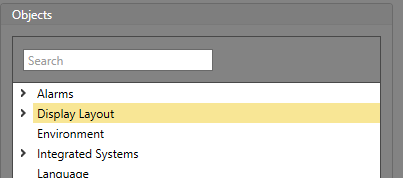
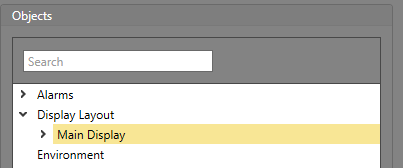
Display Layouts can be managed from within Workflows. There are two levels for these objects: the top-level Display Layout object, and the nested individual Display Layouts configured for the project.
Top-Level Display Layout Object Properties
The properties are for the top-level Display Layout object in the Logic Editor.
Triggers
| Triggers | Description |
|---|---|
| Started Runtime | Runtime has started running. |
| Selected Assets Changed | Assets have been selected or deselected. |
Commands
| Command | Parameters | Description |
|---|---|---|
| Create Note | Text — The text to be used for the
message. Selected Assets — The assets to be selected. |
Create a note for every asset in the specified Collection. |
| Deselect All | Deselects all currently selected assets. | |
| Execute Asset Command | Command — The command to be
executed. Selected Assets — The assets to be selected. |
Executes a command on the specified Collection. |
| Jump to Asset | Asset ID — The unique ID of the asset
to jump to. Map ID (Optional) — The Map ID to navigate to during the jump. Note: If a Map ID is
not specified, the system automatically navigates to the Map
containing the asset. If one is specified, it goes directly
to that Map even if the asset is not present. |
Jumps to the Map that contains the specified asset. If a Map
ID is provided, it overrides the asset’s default Map and
navigates directly to the specified Map instead. Note: If the
asset is not placed on a Map, and no Map ID is provided,
navigation will not occur. |
| Select Assets | Selected Assets — The assets to be selected. | Selects a specific set of assets. These assets must be of the same type, and multi-select must be enabled for the systems. This will not cause Runtime to navigate to another Map. |
| Set Assets Visibility |
Visible — Whether the assets are to be visible (True) or not (False). Selected Assets — Which assets to change the visibility for. |
Sets a specified collection of assets to either be visible or invisible. |
| Set Buttons Caption |
Text — The text to be used for the caption. Buttons — The IDs of the buttons to change the caption for. |
Changes the caption for a specified set of buttons. |
| Set Buttons Image |
Image — The image resource to use for the button background. Buttons — The IDs of the buttons to change the image for. |
Changes the background image for a specified set of buttons. |
| Set Buttons On Click Image |
Image — The image to use for the button background when it is clicked. Buttons — The IDs of the buttons to change the on click image for. |
Changes the on click image for a specified set of buttons. |
| Set Buttons Fill Color |
Color — The color to set the button to. Buttons — The IDs of the buttons to change the fill color for. |
Changes to fill color of a specified set of buttons. |
| Set Buttons Visibility |
Visible — Whether the buttons are visible (True) or not (False). Buttons — The IDs of the buttons to change the visibility for. |
Changes a specified set of buttons to be visible or invisible. |
| Set Panel Items Fill Color |
Color — The color to set the panel items to. Panel Items — The IDs of the panel items to change the fill color for. |
Changes to fill color of a specified set of panel items. |
| Set Panel Items Visibility |
Visible — Whether the panel item is visible (True) or not (False). Panel Items — The IDs of the panel item to change the visibility for. |
|
| Set Shapes Fill |
Is Enabled — Whether this Command is enabled (True) or not (False). Shapes — The IDs of the shapes to change the fill color for. |
Changes the fill state (boolean) for one or more shapes. |
| Set Shapes Fill Color |
Color — The color to use to fill the shape. Shapes — The IDs of the shapes to change the fill color for. |
Changes the fill color for a specified set of shapes. |
| Set Shapes Image |
Image — The image resource to be used for the object. Shapes — The IDs of the image drawing objects to be updated. |
Changes the image for a specified set of image objects. |
| Set Shapes Line Color |
Color — The color to set the lines of the shapes to. Shapes — The IDs of the shapes to change the line color for. |
Changes the line color for a specified set of shapes. |
| Set Shapes Line Thickness |
Thickness — The line thickness for the shape in pixels. Shapes — The IDs of the shapes to change the line thickness for. |
Changes the line thickness for a specified set of shapes. |
| Set Shapes Text |
Text — The text to set for the label object. Shapes — The IDs for the label objects to set the text for. |
Changes the text value for a specified set of label drawing objects. |
| Set Shapes Text Color |
Color — The color to set the text of the label object to. Shapes — The IDs of the label objects to set the text color for. |
Changes the text color for a specified set of label drawing objects. |
| Set Shapes Visibility |
Visible — Whether the drawing object is visible (True) or not (False). Shapes — The IDs of the shapes to change the visibility for. |
Properties
| Property | Description |
|---|---|
| Item ID | The unique identifier for this item. |
| Item Type | The Type of item this is. |
| Last button pressed event | The last occurring button pressed event. |
| Name | The value for this property is the Description configured via the property grid when the item is selected in Designer. |
| Selected asset Ids | A list of the Ids currently selected in Runtime. |
Properties for Nested Display Layouts
The properties are for the nested Display Layouts in the Logic Editor.
Triggers
| Triggers | Description |
|---|---|
| Clean Screen Started | The Workstation has entered clean screen mode. |
| Clean Screen Completed | The Workstation was in clean screen mode, and the timeout period has completed. |
| Clean Screen Cancelled | The Workstation was in clean screen mode, but it was cancelled. |
Commands
| Command | Parameters | Description |
|---|---|---|
| Start Clean Screen | Seconds — The number of seconds screen cleaning mode is active before automatically timing out. | Enters a mode intended for when the Runtime operator needs to clean a touch screen monitor. This mode makes the objects on the Display Layout non-interactable to ensure there are no unintended clicks registered. It automatically times out after the configured number of seconds. |
| Cancel Clean Screen |
Seconds — The number of seconds before screen cleaning mode is cancelled. Color — The color the screen turns to warn the user that screen cleaning mode is about to be cancelled. |
Cancels screen cleaning mode early. This can be used in the event that this mode is active, but an urgent event (such as a duress) occurs which requires the Runtime operators immediate attention. |
Properties
| Property | Description |
|---|---|
| Item ID | The unique identifier for this item. |
| Item Type | The Type of item this is. |
| Background | The image displayed in the Background for this Display Layout. |
| Clean Screen Active | Whether clean screen mode is currently active (True) or not (False). |
| Clean Screen Timeout | The amount of time left in the clean screen timeout. If clean screen mode is not active, this value is zero. |
| Height | The vertical height of the item in pixels. |
| Name | The value for this property is the Description configured via the property grid when the item is selected in Designer. |
| Width | The horizontal length of the item in pixels. |