Add a Rule
Rules can be useful for facilitating the transfer of responsibility between Workstations in projects. In this example, creating a new Rule allows cell blocks to have their control transferred to another Workstation.
-
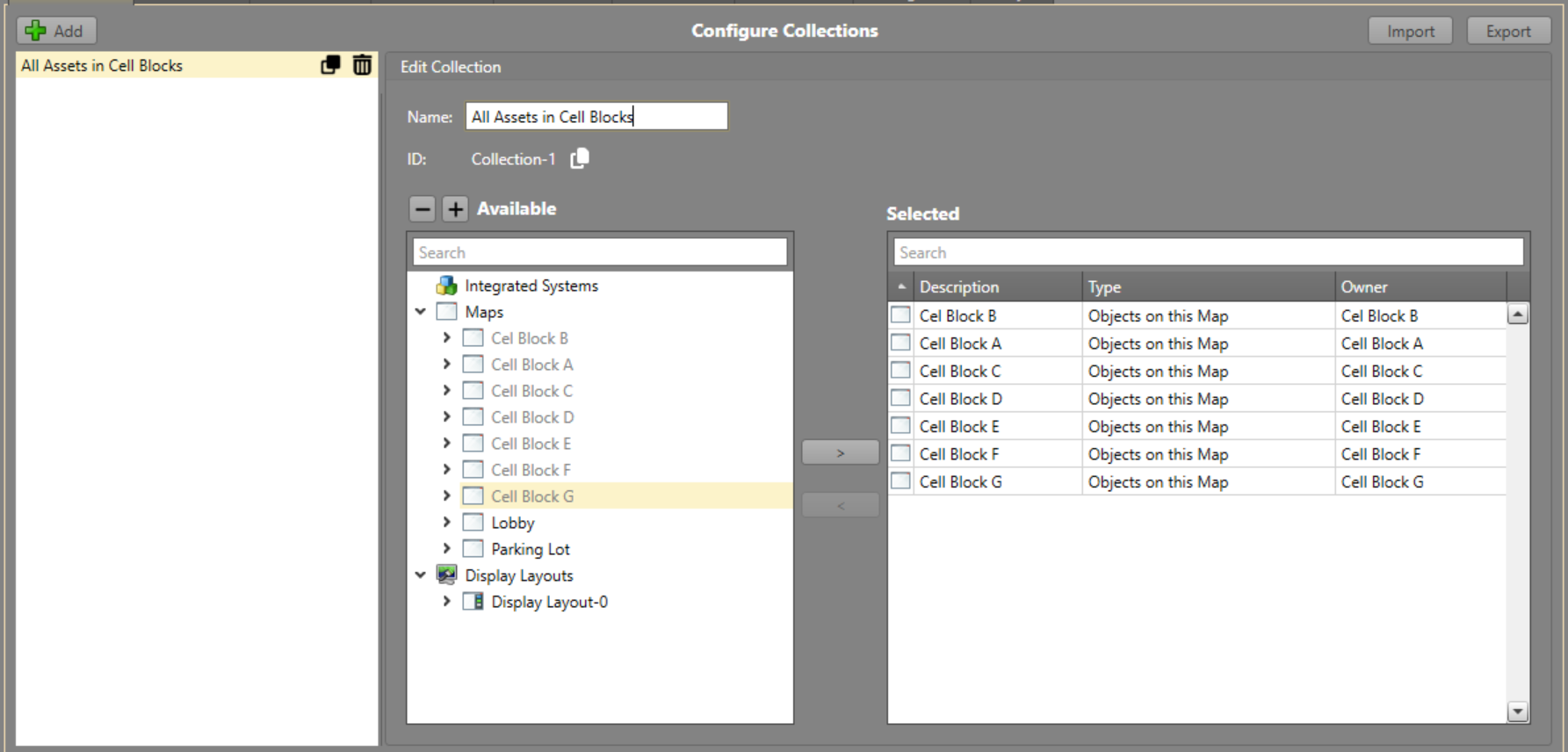
Before using Rules, configure the assets you want to use
by using Collections:
-
In .
-
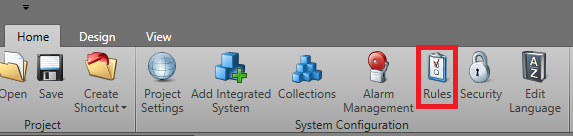
Click
 to
create Rule 1.
to
create Rule 1.
-
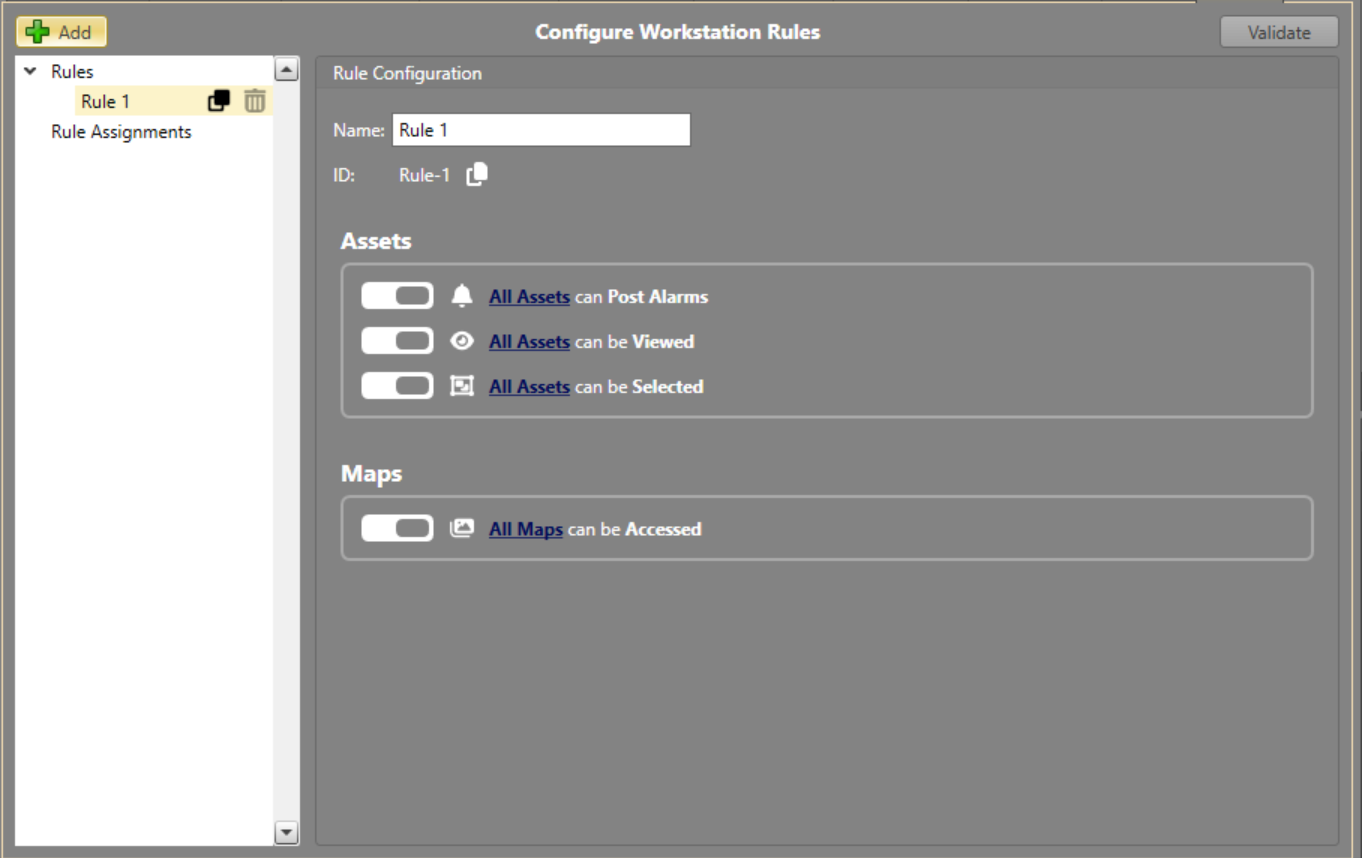
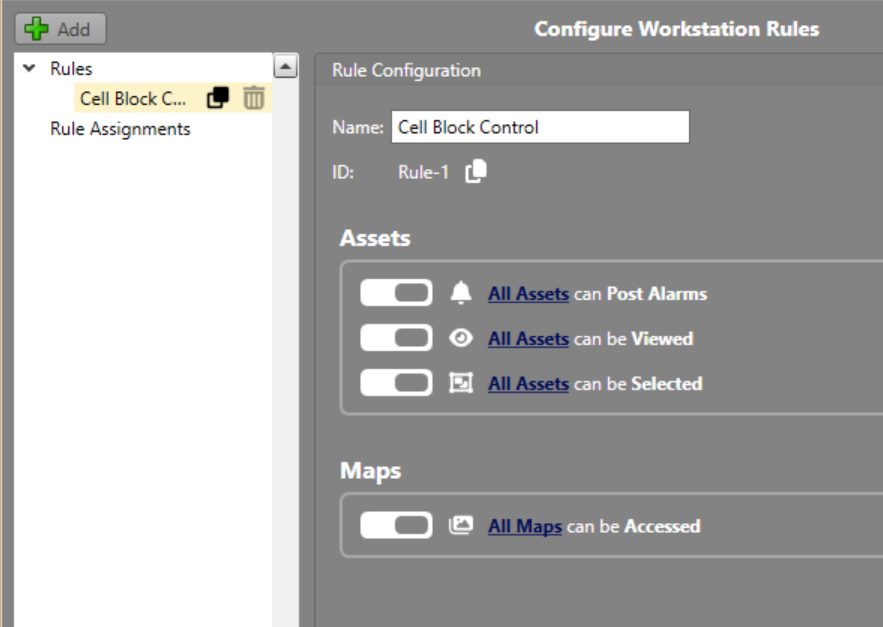
Rename the Rule, and click on All Assets under the
Assets section.
-
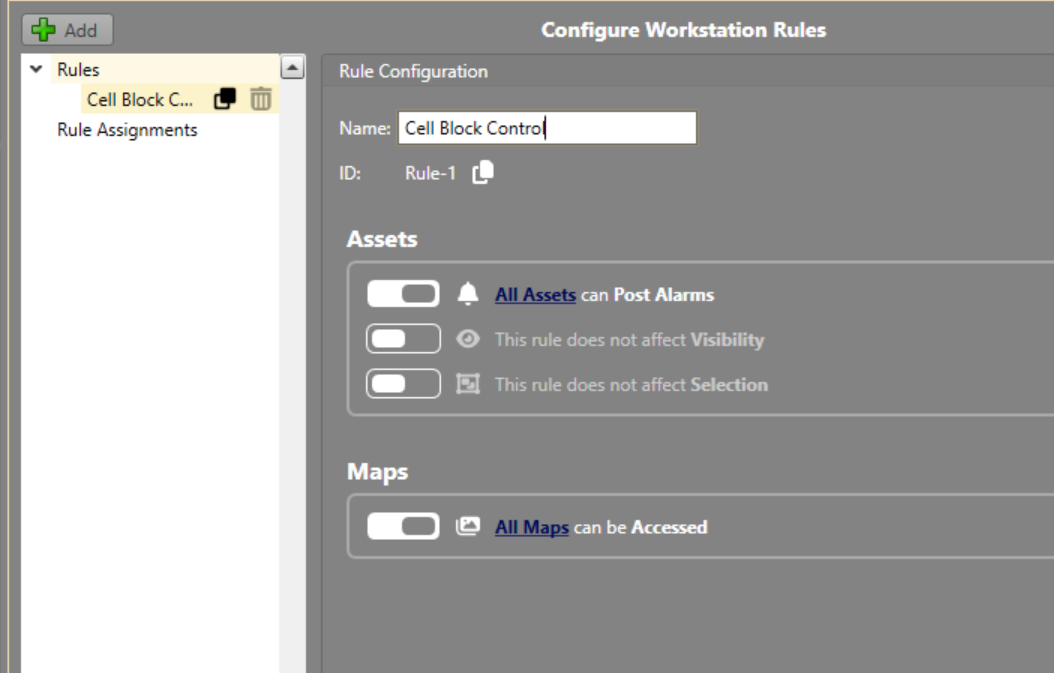
Decide what assets and Maps should be included in the Rule. If the Rule is not
applicable, switch the toggle to off.
-
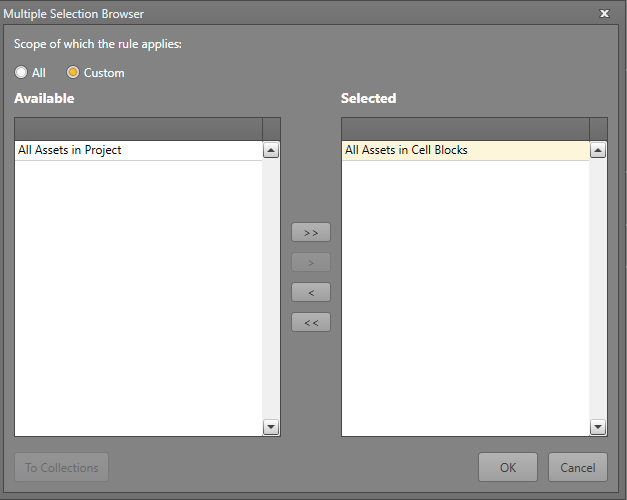
Within the Multiple Selection Browser, select the assets
to be used:
When choosing the scope for the Rule, there are two options:
- All — This Rule will apply to all assets in the project.
- Custom — This Rule will apply to a pre-configured Collection of assets.
-
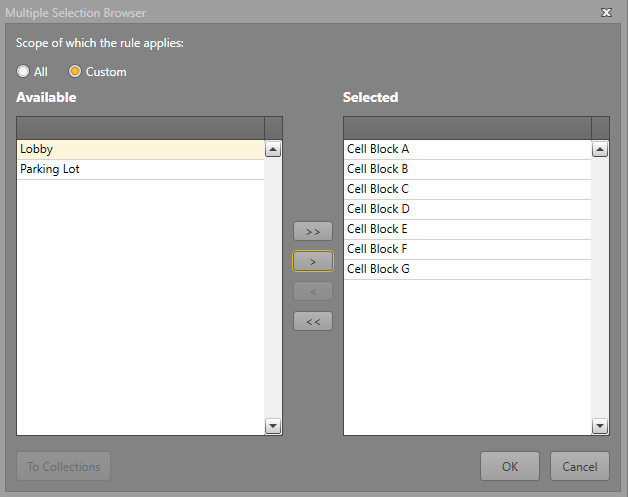
Within the Multiple Selection Browser, select the Maps
to be used:
When choosing the scope for the rule, there are three options:
- All — This Rule will apply to all Maps in the project.
- Custom — This Rule will apply to selected Maps.
-
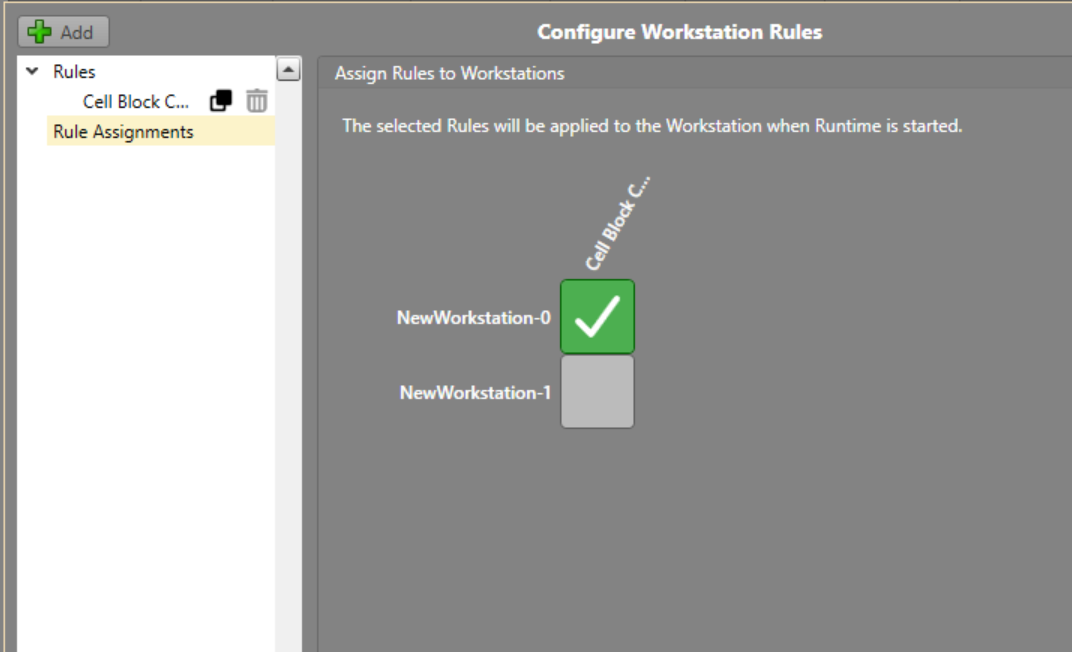
To apply it to a Workstation, navigate to Rule
Assignments, and select the required Workstation.
-
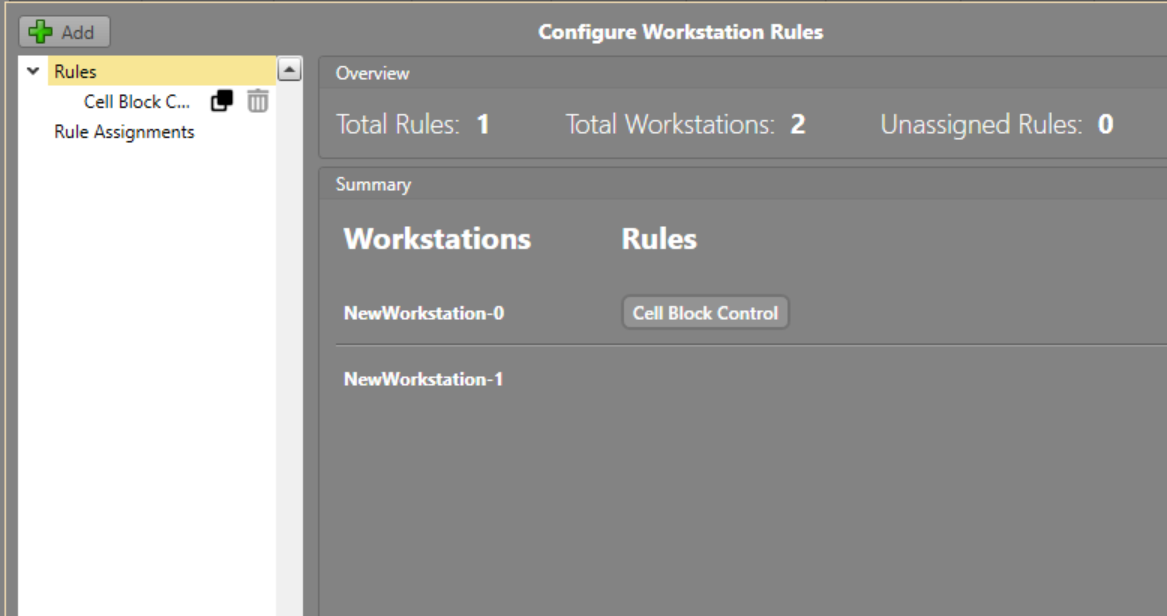
To get an overview of all the Rules and Workstations in the project, click on
the Rules tab to see the overview page: