
Duplicate Icons
Duplicate Icons is helpful to use when you need to place many existing assets onto Maps quickly and efficiently. This can be done by selecting the duplication option from the asset's right-click menu.
To create a new asset icon based on an existing one, select Duplicate Icons... from the asset's right-click menu, then choose one of the following options:
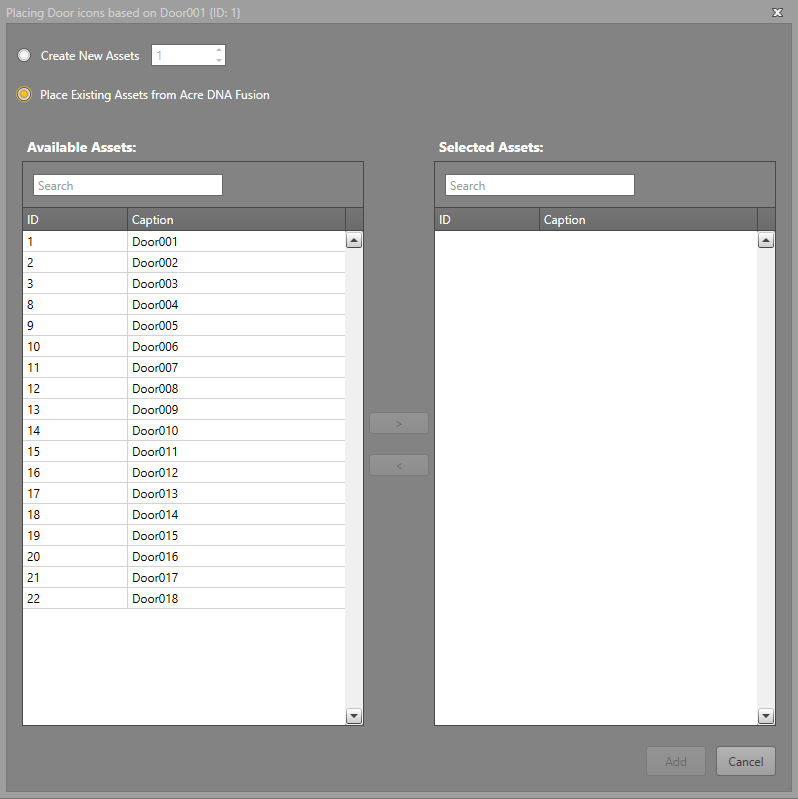
| Create New Assets | Enter the number of assets to create. This generates new assets based
on the one currently selected, with identical visuals and asset
settings, except for the Asset ID. Note: If you
undo this action, the icon will be removed, but the asset will
remain in the asset database. |
| Place Existing Assets | Duplicates the selected asset’s icon from a list of same-type assets, copying only the visual settings. |
New icons are placed at the top left of the Map and spaced 5px apart, continuing on to the next row when they reach the Map’s edge.