
Find Strings in Designer
You can use the Find feature in Designer to search for text strings. This can be helpful for finding specific items such as specific assets.
To search Designer for a specific string, follow the steps below.
-
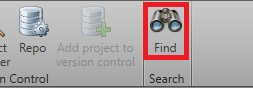
In the Home tab, click Find.
-
Enter your search criteria.
-
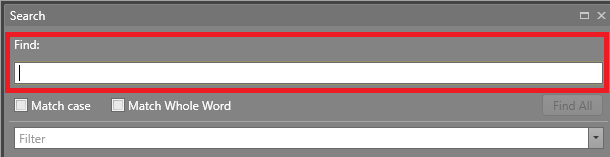
In the Find field, enter in the string to search for.
-
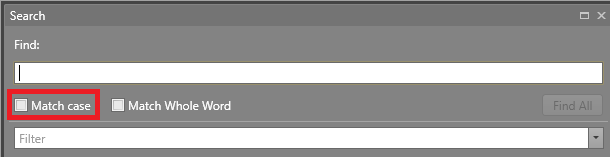
To do a case-sensitive search, check Match case.
-
Check Match Whole Word to find an exact match
without it being part of a larger word, even when the word is next to
punctuation or special characters.
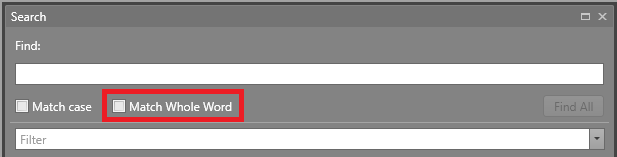 Note: This search is beneficial when looking for numbers, as this search can bring forth the precise number instead of results that contain the desired number (e.g., if searching for an asset with an ID of 3, it will show only the result containing 3, and not 30, 31, etc).
 -
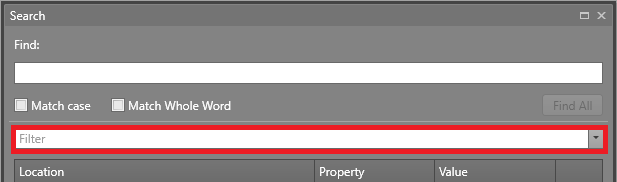
To add further filtering, enter a string into the Filter
text box.
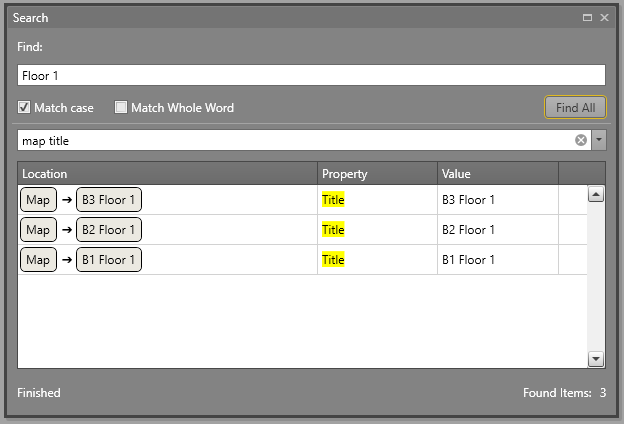
-
In the Find field, enter in the string to search for.
Note: Some items in Designer are not searchable, such as:
- Certain places where Maps are used
- Workflows will not always pull up where an item is used