
Launching Runtime
Runtime will run a published project on a Workstation. There are a few different methods for launching Runtime.
When Runtime is launched on a Workstation, it automatically selects the most recently published project to use. It will figure out which Workstation it is based on the configured IP address. If it can not determine either of these, you will be prompted to select the project or Workstation. If there are no projects found on the machine, you will be prompted to publish to the Workstation.
Launch from Designer
Runtime can be launched from Designer. This is useful if you want to view or test a newly updated or created project.
To launch Runtime from Designer, go to the Home tab and click Run.

Restart Runtime from Designer
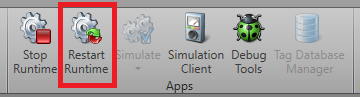
Runtime can be restarted from Designer. This option becomes available after clicking the Run button. This is useful if you want to test changes without having to stop Runtime.
To restart Runtime from Designer, go to the Home tab and click Restart Runtime. Changes must be saved in order to take effect after clicking Restart Runtime.
Stop Runtime
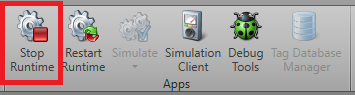
To end a Runtime session, click on the Stop Runtime button. This option becomes available after clicking the Run button.
Go to the Home tab and click Stop Runtime.
Runtime Service
If you do not want a graphical interface to interact with in Runtime, it can be run as a service.
To launch Runtime as a service, view the Runtime as a service section for further information.
Launch from Shortcut
Runtime can be launched directly from a shortcut. If you need to create a shortcut, in Designer click Create Shortcut. Select the Runtime Shortcut.
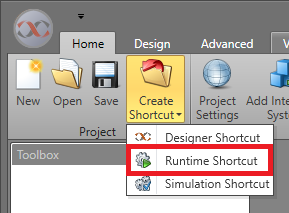
Select the location for it and Save. Double-click the shortcut to launch Runtime.
Launch from Command Line
Launching Runtime from the command line allows for extra parameters to be set for the startup.
To view information on launching Runtime using the command line, go to the Run IPFusion with the Command Line section.