Using Drawing Tools in Workflows
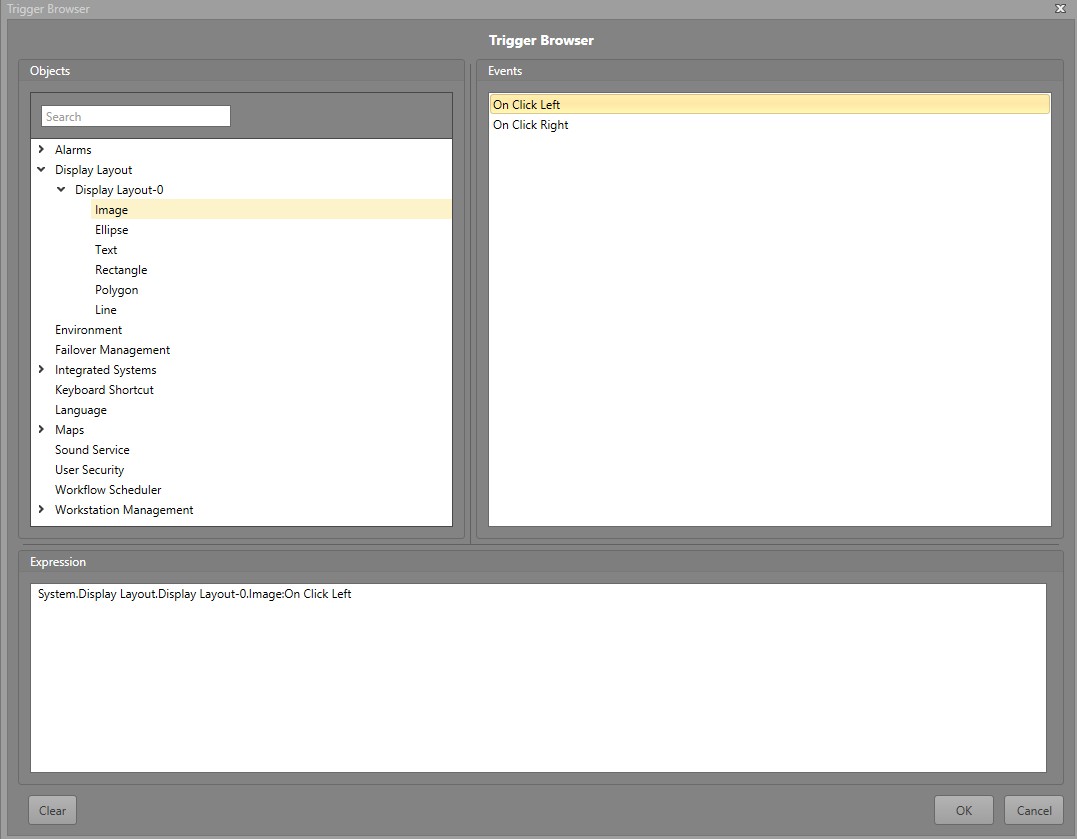
Display Layout Drawing Objects can also be used to either trigger an Action or Workflow.
Items that can be used to trigger a Workflow include:
- Rectangle
- Ellipse
- Line
- Polygon
- Text
- Image
Once the Drawing Object has been added, you can use it as a Workflow trigger.
Use a Drawing Object to Trigger a Workflow
Clicking a Drawing Object can be used to trigger a Workflow.
To use a Drawing Object to trigger a Workflow, follow the steps below.
-
In the Trigger Browser, navigate to . Expand the Layout containing the
Drawing Object. Anyone of the following shapes
will contain these triggers: