
Multistate Status
Some integrated system assets can be in multiple states at once. A multistate status can be defined to show that an asset is in a specific combination of states. The multistate status requires all added statuses for the asset to resolve to that state.
While multistate assets can be configured to use single state statuses, you will need to configure the priority to ensure the correct state is displayed. When the highest priority state is active, any lower priority states will not be shown. Creating a multistate status allows the Runtime operator to have awareness of the multiple active states. For example, if a door could be open or closed, as well as locked or unlocked, and the locked/unlocked statuses were highest priority, the Runtime operator would never be aware if the door was open or closed.
It is not recommended to use multistate statuses for single state assets, as they will never resolve to multiple statuses at once.
Creating a Multistate Status
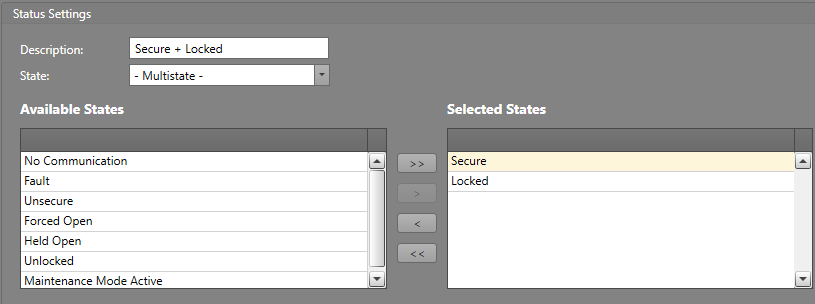
In this example, we will be setting up a multistate status for a door system. A door can be opened (unsecure) or closed (secure), as well as locked or unlocked. We will configure a status for when the door is both secure and locked in the following steps.
In the integrated system door status table:
-
Add the Secure and Locked
states.
- Select Secure from the Available States list and click >.
- Select Locked from the Available States list and click >.
Runtime Behavior
When multiple multistate statuses exist in a status table, the system considers the following conditions when resolving which status to display:
- The total number of matching system states
- The priority of the status
Example: