
Collections in Workflows
Collections can be used in Workflows to help simplify projects.
Action Block
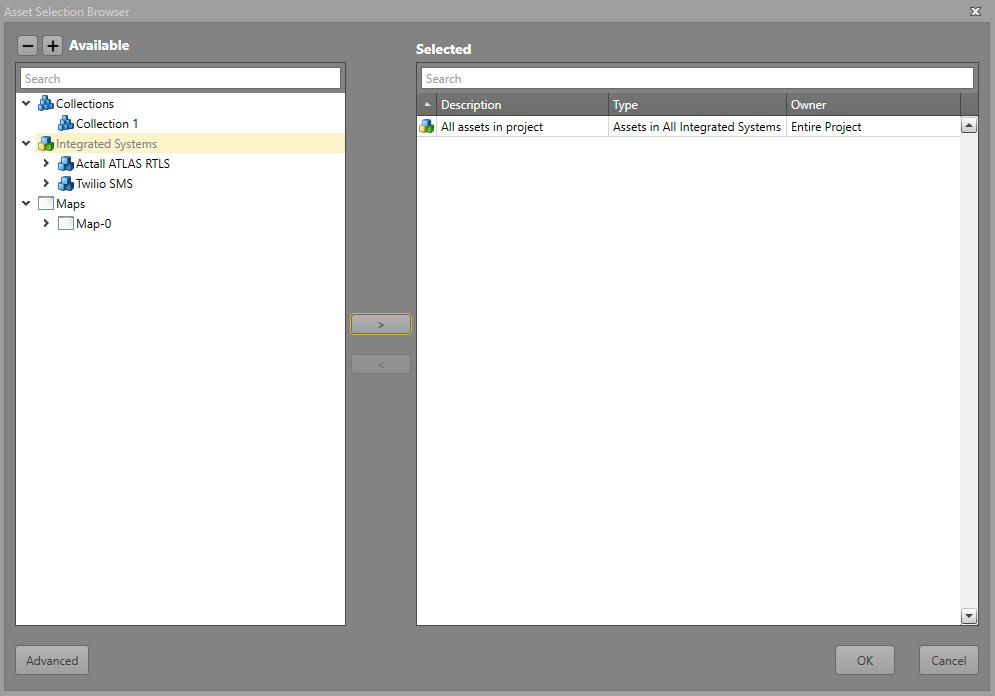
Collections are available within the Action Browser as a Command Parameter. To access Collections available in the project, find the Asset Selection Browser. When accessing Collections through this browser, you will be able to select a Collection that has already been defined. The hierarchy is displayed as follows:
-
 All
Collections in a Project
All
Collections in a Project-
Specific Collection
-
 All Assets in a Project
 All Assets in an Integrated System
Instance
All Assets in an Integrated System
Instance All Assets of a specific Asset
Type
All Assets of a specific Asset
Type- Individual Assets
-
 All Assets
on All Maps
All Assets
on All Maps- All
Assets on a specific Map
- All Assets of an Integrated
System Instance on a Map
- All Assets of a specific
Asset Type on a Map
- Individual Assets
-
Click on Selected Assets. This will give you access
to the Asset Selection Browser.
Logic Block
Collections can be used in the Logic Editor through the Collections tab.