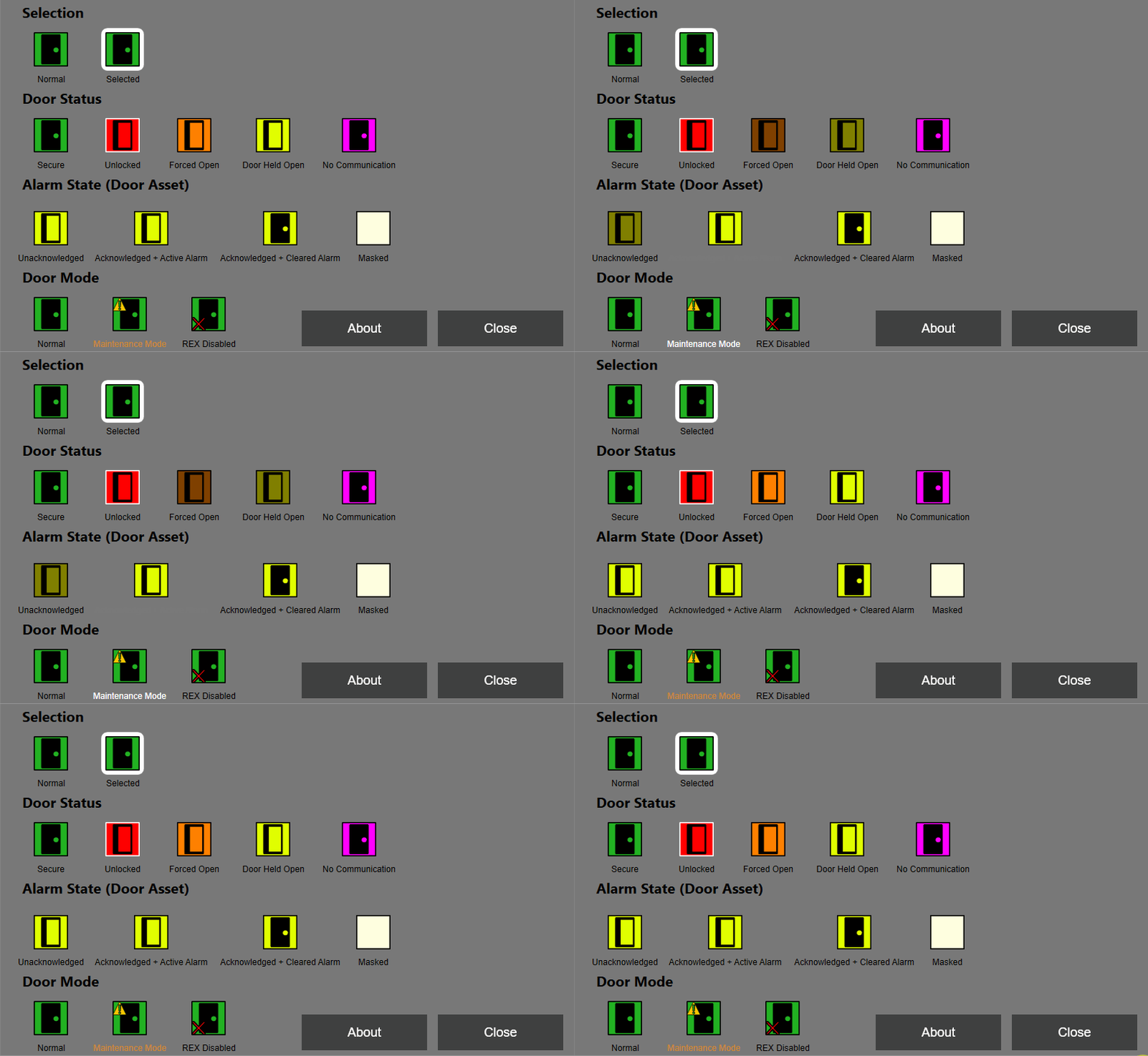
Add New Legend
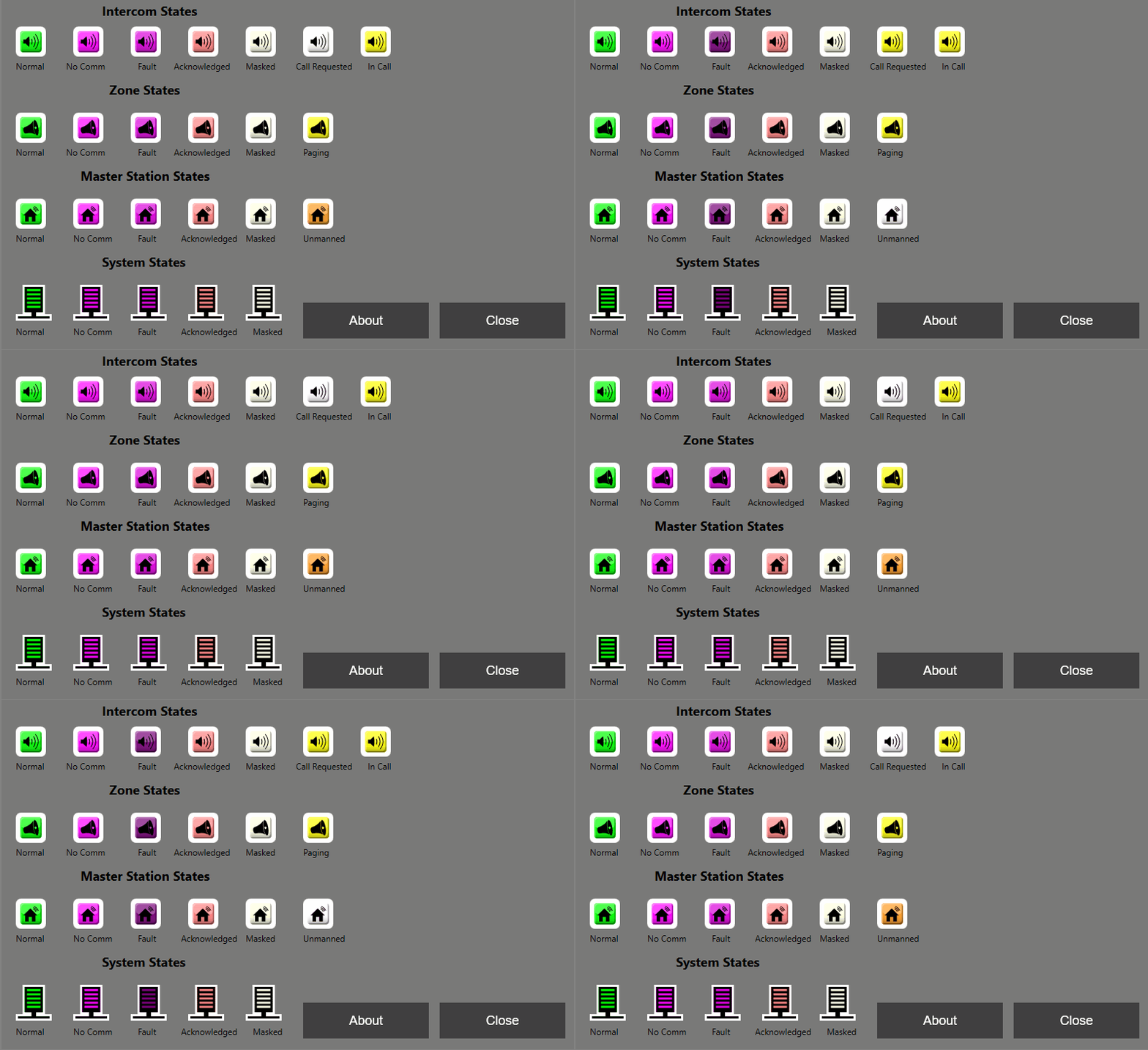
A Legend serves as a visual reference for interpreting icons and colors that indicate system statuses.
To create a Legend, follow the steps below.
-
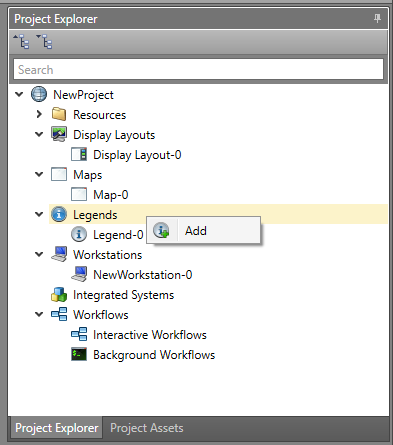
In Project Explorer right-click
Legend and select Add.
Add an Integrated System (Default Mode)
-
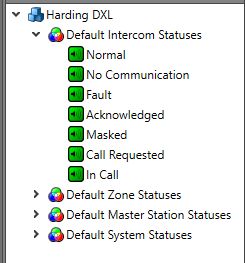
The Toolbox lists the available statuses for each
integrated system that have already been configured in the project. Once
configured, those statuses appear in the Toolbox and can be placed on the
canvas. Each status icon can display a different status from the
Status Table.
-
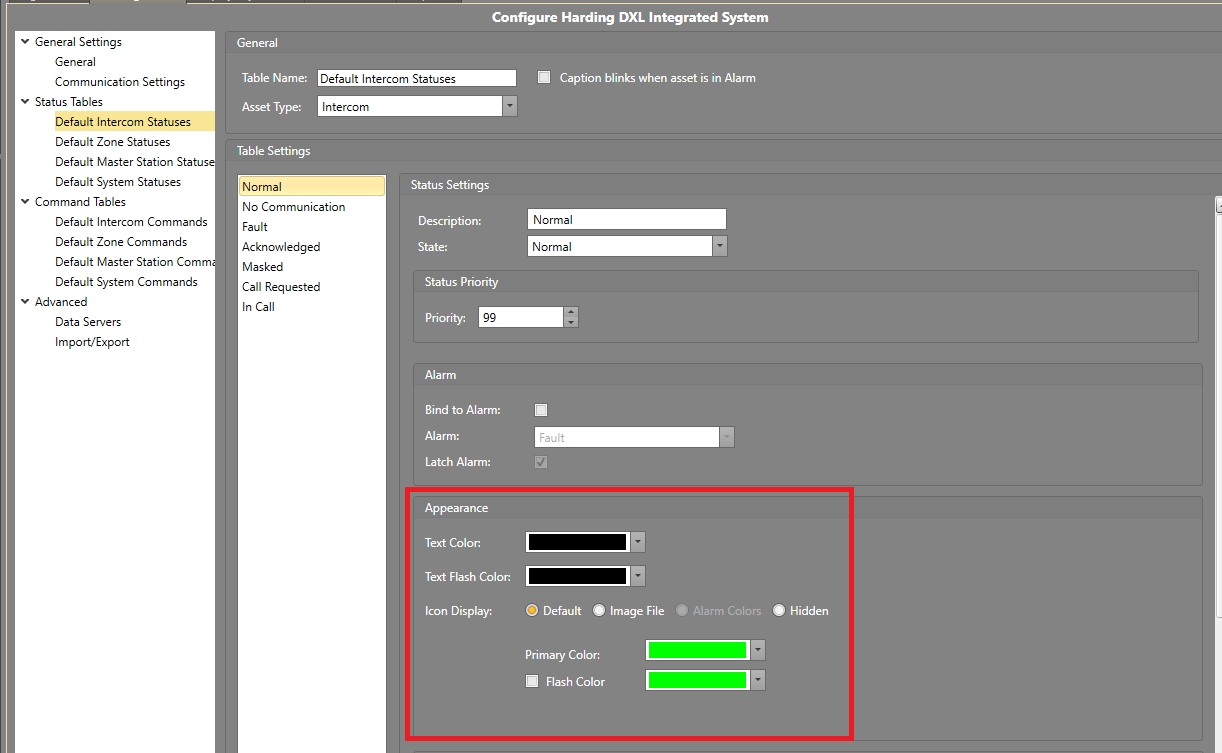
Once the icon statuses are dragged onto the canvas, they display color and
flashing behavior depending on how the status is configured in that specific
integrated system's settings. To customize these settings, go to the
specific integrated system's setting page and adjust the color and flash
options under the Appearance section.
-
Add Captions or Labels to
identify each status.
Add an Integrated System (Advanced Mode)
-
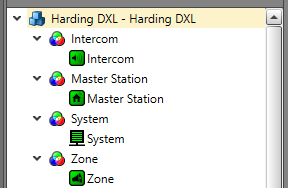
The Toolbox lists the available subtypes for each
integrated system that has already been configured in Advanced Mode and added to the
project. Once configured, those subtypes appear in the Toolbox and can be
placed on the canvas.
-
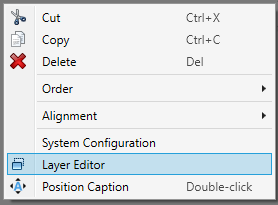
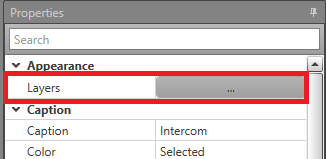
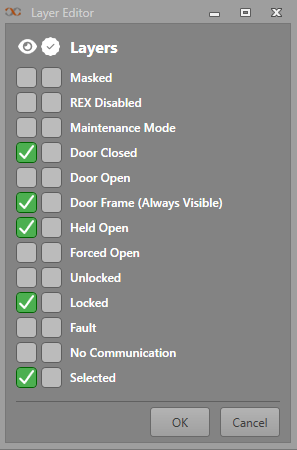
For each status, adjust the visible layers for the subtype icon. Either
right-click the icon to access the Layers Editor or
click on the Layers button located under the
Properties grid.
-
The Layers Editor allows you to define all possible
statuses the subtype can display. Choose which status is shown by selecting
which layers are visible using the checkboxes under the Eye
Icon column.
-
Add Captions or Labels to
define and organize assets in the layout.