
Add and Edit a User
Create User accounts in your project to control access in Designer and Runtime. To assign different privileges to different users, you will need to enable Security. Once a user profile is created and assigned to a group, you can use the dashboard to edit or delete user profiles, reset passwords or PINs, and enable or disable user accounts.
Add a User
Add a user account to a group to assign it security privileges in Runtime and Designer.
-
Fill in the information for the new User.
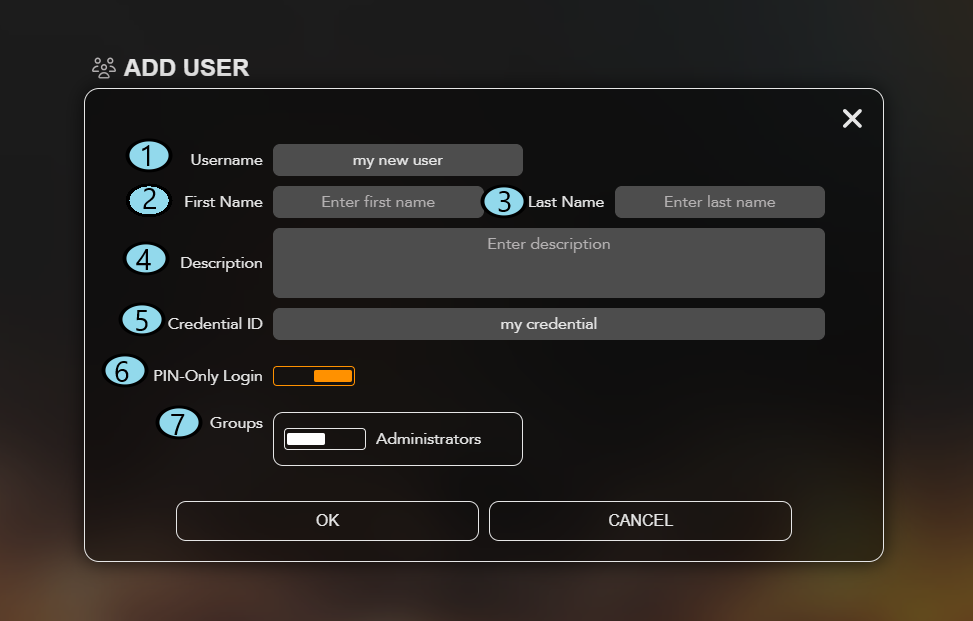 />
/>Name Description Editable after Account Creation 1. Username The Username for the user. No 2. First Name The First Name of the person this account is assigned to. Yes 3. Last Name The Last Name of the person this account is assigned to. Yes 4. Description The Description of the account. Yes 5. Credential ID The unique value used to represent a user in the system. Yes 6. PIN-Only Login Toggle this on to allow users access using only their PIN. Important: When enabled, a new PIN will be displayed after the user is added.Yes 7. Groups The Group that the user will be added to. Yes
Edit a User
After creating a user, it is now possible to edit the profile.
-
It is possible to edit the following sections:
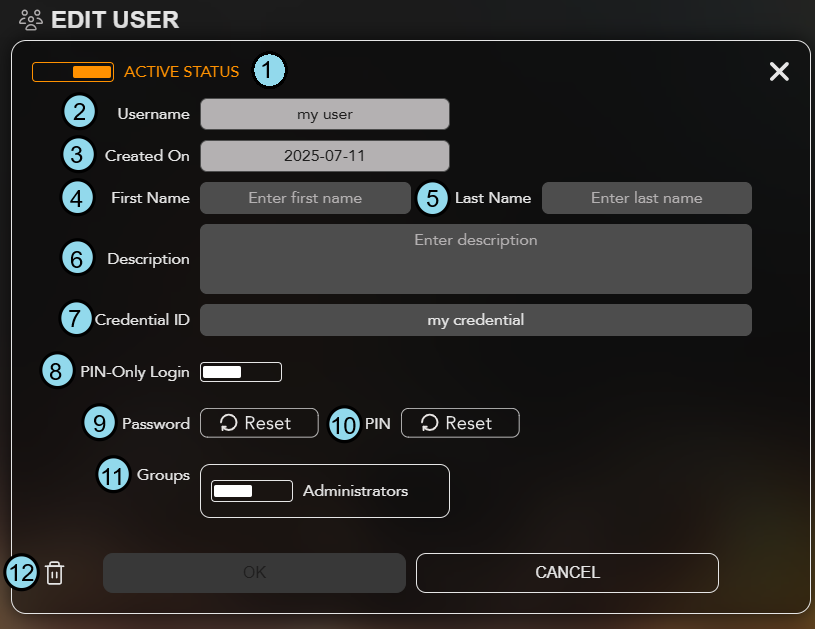
Name Description Editable after Account Creation 1. Active Status Toggle on or off the Active Status to active or deactivate the account. Yes 2. Username The Username of the account. No 3. Created On The date this account was created. No 4. First Name The First Name of the person this account is assigned to. Yes 5. Last Name The Last Name of the person this account is assigned to. Yes 6. Description The Description of the account. Yes 7. Credential ID The unique value used to represent a user in the system. Yes 8. PIN-Only Login Toggle this on to allow users access using only their PIN. Important: When enabled, a new random PIN will be set after the user is added.Yes 9. Password Reset Sets the password to the default defined in the admin page. Yes 10. PIN Reset Sets the PIN to the default defined in admin the page. Note: When PIN-Only Login is enabled, a new random PIN will be generated instead of using the default PIN defined in the Admin dashboard.Yes 11. Groups The Group that the user will be added to. Yes 12. Delete Click on the garbage icon to delete the profile. Note: The default Admin profile cannot be deleted or removed from the Admin group.Yes