
Diagnostics Dashboard
The Diagnostics dashboard helps monitor the status of connected Workstations. It shows details like the Workstation's name, IP address, last check-in time, and role (Leader, Follower, Read-Only, or No Communication). This helps ensure all Workstations are connected and working correctly. This page can be accessed, regardless of the node state, by navigating to the following address: https://[IP address of Workstation]:5253/diagnostics. You can also use this page to force a specific Workstation to become the Leader Workstation, which changes which node the others follow during synchronization.
Leader Election Process
When Runtime connects to the Access and Identity Management service, it initializes the synchronization process. A new Leader Election is triggered for the project if no current leader is detected.
Leadership is determined through a majority-vote election process:
- A node triggers an election if it does not receive a heartbeat within a defined timeout.
- Workstations exchange votes, and a node becomes the
Leader only if it secures a majority from the
full list of Workstation defined in the project.Note: An election can only proceed if a quorum is met, meaning at least a majority (half plus one) of the Workstations are available to vote.
- Election terms and vote history are stored for conflict resolution.Note: If the Access and Identity Management service restarts, election will not begin again until Runtime connects and initiates the synchronization process.
Initial Behavior
The Access and Identity Management service is initialized when Runtime is started on the same machine.
Initial Setup for Leader and Follower Workstations
- Start Runtime on all Workstations
Access and Identity Management service initializes locally. Once the majority of Workstations are initialized, the system will automatically select one Workstation to act as the leader. The remaining Workstations in the majority group will become followers. Subsequent Workstations will become followers as they are initialized.
- Verify Roles via Diagnostics
Use the Diagnostics page to confirm roles (ensuring there is one Leader and the rest are Followers), verify that all have the same datastore version, and check communication status.
Leader
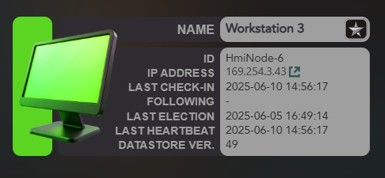
Follower

Workstation Fault States
In a healthy state, there should be one Leader Workstation, and all others should be Followers. If an issue occurs, a Workstation may enter either the Read-Only state or the No Communication state.
Read-Only
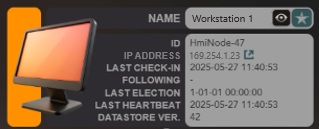
No Communication

| Leader and Follower | Read-Only |
|---|---|
|
|
Force Leader Button
If more than half of the Workstations are in Read-Only or No Communication, a Leader will not be elected automatically. However, users can manually promote a Read-Only Workstation by clicking the Force Leader button next to it. This is meant to restore Leader/Follower behavior in the event that you are unable to reach a majority node vote (ex. first time setup or multiple workstations are offline). Use caution when using this button, as forcing a Workstation to become the Leader can cause unintended behavior. Specifically, forcing leadership might result in losing recent configuration changes if the chosen workstation is behind in synchronization. Ideally, all nodes should first be brought back online before attempting this recovery action. This procedure should only be used when no nodes can elect a Leader automatically and other nodes are unavailable and unlikely to come back online.
Force Leader Button
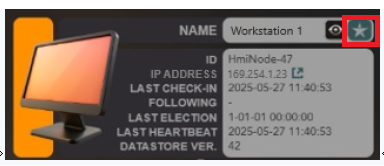
- Clicking the button displays the following warning:Warning: You are about to force a Read-Only node to become the Active Node. This can have unexpected consequences if this node has become severed from its peers. Only confirm this action if you are certain that the other nodes are truly offline. Confirm username and password to authorize this action.
- To proceed, the user must re-enter their username and password.
When a forced election is triggered from the Diagnostics page:
-
This action bypasses the standard majority-vote protocol and immediately designates a new leader.
-
All election attempts and outcomes are logged across nodes for audit purposes.
-