
Aiphone IX | IXG Series
Aiphone IX | IXG Series provides Master Station and Station integration.
Setup
See the Data Servers page for information on configuring driver communication.
Prerequisites
| Software | Minimum Version |
|---|---|
| .NET Framework | 4.7.2 |
| IPFusion — Aiphone IX | IXG Series | 1.1 |
When completing your setup, be sure to have the Aiphone IX | IXG Series documentation available for reference.
Ports
These ports must be open in your network firewall for the integration to work.
| Purpose | Default Value | Configurable |
|---|---|---|
| Dataserver | 9703 | Yes |
| Debug Tools | 9704 | No |
| SIF Listening | 65013 | Yes |
CGI Functionality
- Navigate to the Master Station or Station's web page.
- Locate .
- Set CGI Functionality to Enable.
- Click Update. This will reboot the Master Station or Station.
Enable Status via SIF Protocol
- Navigate to the Master Station or Station's web page.
- Locate .
- Set SIF Functionality to Enable.
- Set SIF URI Format to Disable.
- Under SIF Settings (one connection must be
defined per Data Server in the project):
- Program Type: Any value between 4 binary (0100) and 16 binary (1111)
- IPFV4: IP address of the Data Server
- Destination Port: The Listening Port defined in the IPFusion Project
- SSL: Disable
- Connection: Socket
- Transmission Triggers: Check all
required options:
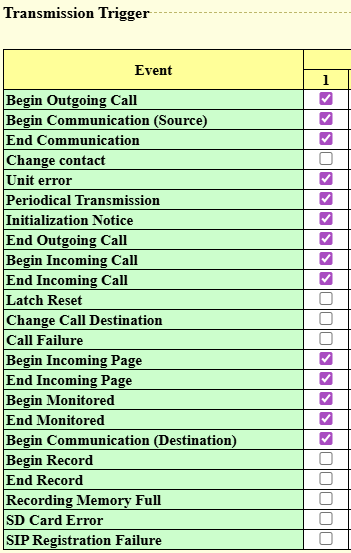 Important: Statuses may not function properly if messages are not selected correctly.
- Set the Periodic Transmission Interval:
-
This value must be more frequent than the Station Timeout setting in your project
-
Communication Configuration
In the integrated system configuration panel, you will find the Communication Settings. The below information is required.
| Station Timeout (s) | The maximum amount of time a device can go without receiving a
periodic message. Note: If a periodic message is not received from
the device within the timeout, the device's status will be
changed to No Communication. |
| SIF Listening Port | The port that devices send their SIF payloads to. Note: The port
number must be between 1024 and
65535 (default port: 65013). If the
project uses multiple Data Servers, they will all use the same
port defined in Communication Settings. |
| Workstation | The Workstation the Master Station is controlled from. |
| Device ID | The ID of the device in the Aiphone system. Note: This number
must be four digits (e.g., 0001) |
| Username | The login name linked to a specific Master Station. |
| Password | The password corresponding to the Master Station username. |
To add Workstations to the Communication Settings, create them in the project. See the Workstations section for more information.
Assets
Master Station Asset
This asset represents a Aiphone IX | IXG Series Master Station. They are used to connect Stations and other Master Stations. As long as there is a connection to the Master Station, it will remain in Normal status.
Required Property Grid Fields
| Device ID | The ID of the device in the Aiphone system. Note: This
number must be four digits (e.g., 0001) |
| Password | The password corresponding to the Master Station username. |
| Username | The login name linked to a specific Master Station. |
| Workstation | The Workstation used to communicate with this Master Station. |
-
If the Master Station represents a device that is not assigned to a Workstation, set Workstation to No Workstation and enter the IP Address, Username, and Password in the asset’s Property Grid.
-
If the Master Station represents a device that is assigned to a Workstation, set Workstation to the target Workstation. The asset will inherit its connection settings from Communication Settings in the Integrated System configuration.
Supported States
| Acknowledged | An asset alarm has been acknowledged. |
| Busy | The asset is currently in a call and cannot accept new calls. |
| Called | The asset has received a call from a Master Station or Station. |
| Calling | The asset is calling a Master Station or Station. |
| Emergency Call Received | The asset has received an emergency call. |
| Error | The asset has encountered an error. |
| Fault | An issue has been detected in a connected asset. |
| Masked | The asset has been masked over its true state. |
| Monitored | A Master Station is listening to this asset. |
| No Communication | Communication has been lost with the driver or asset. This status can
also occur if the communication configuration for the system or asset is
invalid. Note: This status is required in all status
tables.
|
| Normal | The asset is online and in its default state. |
| Talking | The asset has accepted a call from a Master Station or Station. |
| Urgent Call Received | The asset has received an urgent call. |
See the Configure a Status Table page for more information on configuring status tables.
Asset statuses are contextual to the Master Station assigned to your Workstation. You will only see call activity statuses (for example, Called or Calling) when the call involves your assigned Master Station.
| Scenario | Station asset status | Master Station asset status |
|---|---|---|
| A Station attempts to call the Master Station assigned to the Workstation | Called | Called |
| A Station attempts to call a Master Station assigned to a different Workstation, or set to No Workstation | No Change | No Change |
| The assigned Master Station is actively talking with a Station | Calling | Calling |
| A Master Station not assigned to the Workstation is actively talking with a Station | Busy | Busy |
Supported Commands
| Acknowledge | Acknowledge an asset alarm. |
| Call |
Starts a call from the current Workstation’s Master Station
to the target Station or Master Station.
Note: Calling your own Master Station has no effect. |
| Cancel | Deselects all selected assets. |
| End Call | Ends any ongoing call at the target Station or Master
Station, regardless of which Workstation started it. Warning: Use with caution in Command Tables, as it may cause unintended behavior. |
| Mask | Mask the asset's true state. |
| New Note | Adding the New Note Command to your Command Table subscribes this asset to Notes, allowing an operator to attach Notes to this asset in Runtime. |
| Reset | Resets the asset to its true hardware state. |
| Talk | Answers any incoming call at the target Station or Master
Station, regardless of which Workstation started it. Warning: Use with caution in Command Tables, as it may cause unintended behavior. |
| Workflow Trigger | Allows users to trigger Workflows to create custom commands. |
See the Command Tables page for more information on configuring command tables.
Station Asset
This asset represents a Aiphone IX | IXG Series Station. Stations are used to make call requests to their related Master Station.
Required Property Grid Fields
| Device ID | The ID of the device in the Aiphone system. Note: This number
must be four digits (e.g., 0001) |
| Password | The password corresponding to the Master Station username. |
| Username | The login name linked to a specific Master Station. |
Supported States
| Acknowledged | An asset alarm has been acknowledged. |
| Busy | The asset is currently in a call and cannot accept new calls. |
| Called | The asset has received a call from a Master Station or Station. |
| Calling | The asset is calling a Master Station or Station. |
| Emergency Call Received | The asset has received an emergency call. |
| Error | The asset has encountered an error. |
| Fault | An issue has been detected in a connected asset. |
| Masked | The asset has been masked over its true state. |
| Monitored | A Master Station is listening to this asset. |
| No Communication | Communication has been lost with the driver or asset. This status can
also occur if the communication configuration for the system or asset is
invalid. Note: This status is required in all status
tables.
|
| Normal | The asset is online and in its default state. |
| Talking | The asset has accepted a call from a Master Station or Station. |
| Urgent Call Received | The asset has received an urgent call. |
See the Configure a Status Table page for more information on configuring status tables.
Supported Commands
| Acknowledge | Acknowledge an asset alarm. |
| Call |
Starts a call from the current Workstation’s Master Station
to the target Station or Master Station.
Note: Calling your own Master Station has no effect. |
| Cancel | Deselects all selected assets. |
| End Call | Ends any ongoing call at the target Station or Master
Station, regardless of which Workstation started it. Warning: Use with caution in Command Tables, as it may cause unintended behavior. |
| Mask | Mask the asset's true state. |
| New Note | Adding the New Note Command to your Command Table subscribes this asset to Notes, allowing an operator to attach Notes to this asset in Runtime. |
| Reset | Resets the asset to its true hardware state. |
| Workflow Trigger | Allows users to trigger Workflows to create custom commands. |
See the Command Tables page for more information on configuring command tables.
Workflow Integration
System Commands
System commands are commands executed through Workflows at the system level. For more information about Workflows, see the Workflows section.
End Master Station Call
Ends a call with the specified Station or Master Station.
Master Station Talk
Answers any incoming call on this Workstation’s Master Station.
Troubleshooting
Logs from the driver and Runtime can be viewed in the Debug Tools client. These messages contain information which can provide further context for issues during initialization, or while actively running. This can help diagnose problems.